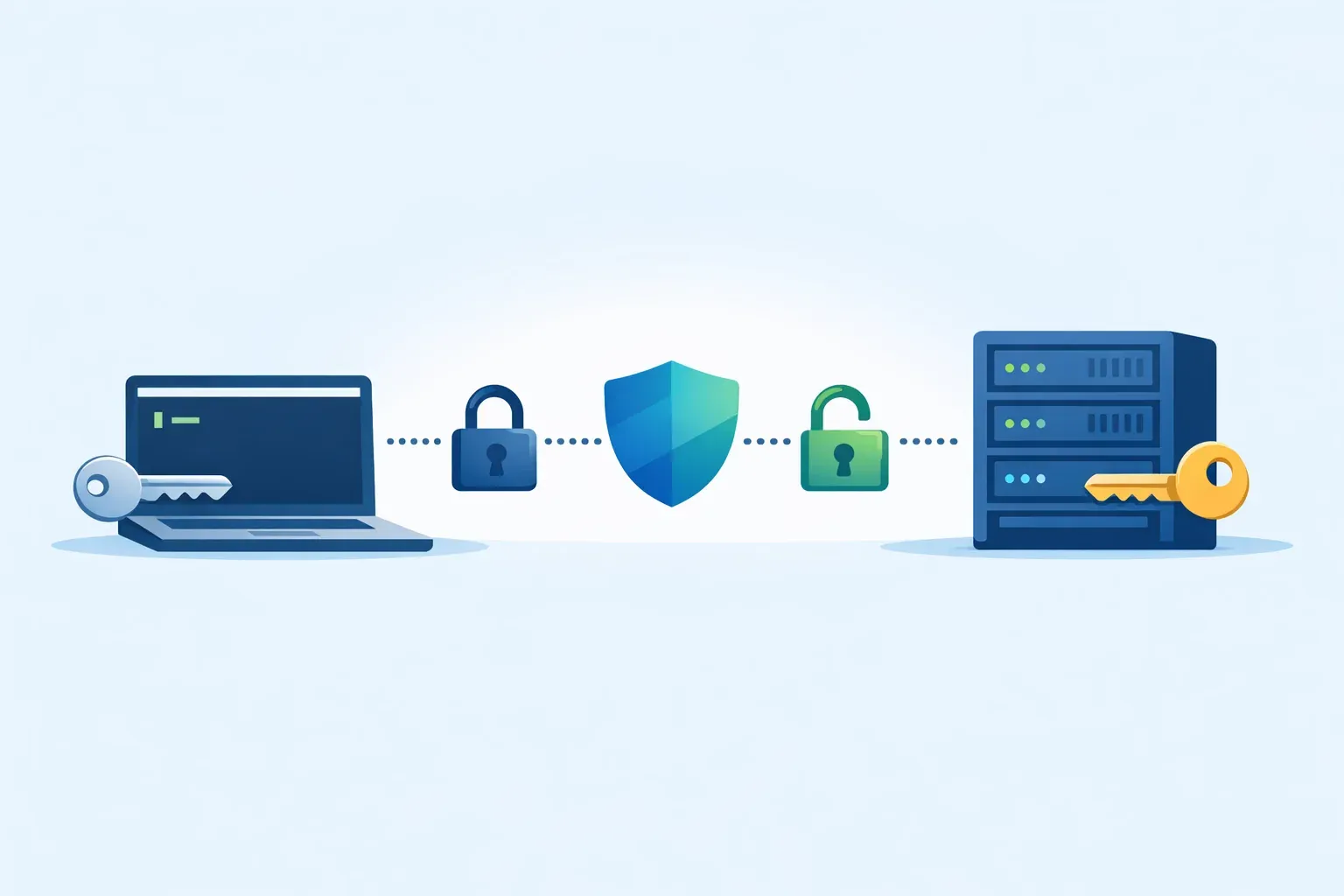
You want to access computer R (remote) securely from computer L (local) without having to enter a password. This technique is invaluable for automation, where you do not want to put passwords into scripts. It is also more secure than plaintext protocols such as Telnet.
The solution
Use SSH and public/private keys.
How to do it
On computer L (mostly likely your laptop or desktop), log in as the user you want to use to access computer R, and generate a public/private key pair by issuing the following command. For automation, you can press Enter at the prompts to use an empty passphrase. (For interactive use, depending on your security policy, you may want to set a passphrase as well and rely on your SSH agent.)
ssh-keygen -t ed25519 -C "Comment/Name"This command creates a public/private key pair in your home directory under ~/.ssh. Your public key is stored in ~/.ssh/id_ed25519.pub.
Now we need to create an ~/.ssh directory on the remote computer R if it doesn’t exist, under the username we’re going to access it with. Substitute your username in the following command. You’ll need to enter the password for username@R at this stage.
ssh username@R mkdir -p .ssh
username@R's password:
Option 1 (simplest): use ssh-copy-id to push your public key to computer R. You’ll again need to enter username@R’s password.
ssh-copy-id -i ~/.ssh/id_ed25519.pub username@R
username@R's password:
Option 2 (manual): push your public key via the following command.
cat .ssh/id_ed25519.pub | ssh username@R 'cat >> .ssh/authorized_keys'
username@R's password:
If you run into permission issues, ensure the correct permissions on computer R:
chmod 700 ~/.ssh
chmod 600 ~/.ssh/authorized_keys
We’re done. From now on, entering the following on computer L
ssh username@Rwill get you logged in as username securely on computer R without the need to enter a password.
Footnote: RSA keys are still widely supported, but ed25519 is the better default today because it is faster and uses
shorter keys for comparable security. Use RSA (for example, ssh-keygen -t rsa -b 4096) only when you need to connect
to older systems that do not support ed25519.
Change the output file for your key
If you want to keep multiple keys (for example, one per server or per project), set a custom output file name using
the -f flag:
ssh-keygen -t ed25519 -C "Comment/Name" -f ~/.ssh/id_ed25519_myserverThis creates ~/.ssh/id_ed25519_myserver (private key) and ~/.ssh/id_ed25519_myserver.pub (public key).
Use ~/.ssh/config to simplify commands
You can create an SSH config entry on computer L to avoid typing the username and host every time. Create or edit
~/.ssh/config and add an entry like this:
Host myserver
    HostName example.com
    User username
    IdentityFile ~/.ssh/id_ed25519_myserver
Then connect with:
ssh myserver~/.ssh/config is a convenient way to manage SSH connections and can include additional settings like port, proxy, and
more. It’s worth spending some time reading up on it further, especially if you use bastion hosts/jump boxes to control
SSH access, where it massively simplifies what you need to type.